This details how to change another users password in the classic system. Note: It is important for the user attempting to change the password to have access to user maintenance. This is a permission granted to users by admin users. Without user maintenance, you will not be able to update passwords.
Navigating to the "User Maintenance" screen.
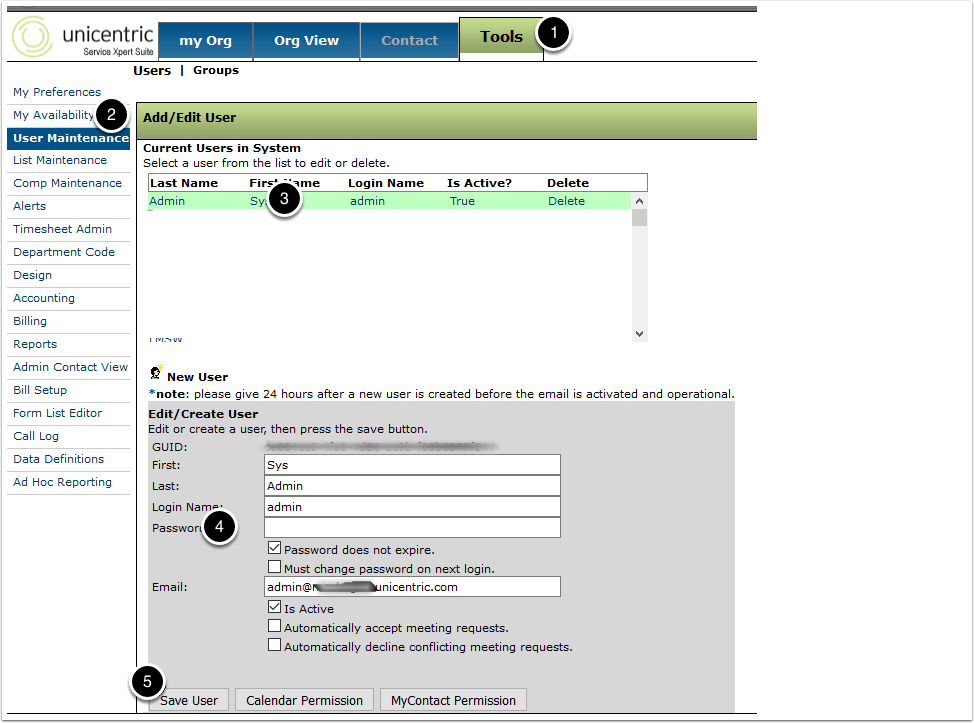
1. To get to User Maintenance, after logging in, you will click on the "Tools" button that runs across the top of the screen.
2. Next, in the menu on the left side of the screen, you will want to click on "User Maintenance". If you do not see it, it’s likely you don't have permission to access User Maintenance and you will need to find a user in your organization who does have this permission to update a password.
Updating the password
3. In User Maintenance you will find a list of all users within the organization. You will want to locate the user whose password you wish to modify and click on their name.
4. After clicking, you will need to enter a new password into the "Password" text box. Doing this will override whatever password is currently being used for that user.
Note: If you are giving the user a generic password, make sure to check the "Must change password on next login" so that they will be forced to change the password to something more secure.
5. After updating the password, click "Save User" and the process will be complete.