This article will describe how you clear your temp files in Internet Explorer 11
For other browsers, follow the links below:
Microsoft Edge: Clear cache in Microsoft Edge
Chrome: https://support.google.com/chrome/answer/2392709?hl=en&rd=1
Firefox: https://support.mozilla.org/en-US/kb/how-clear-firefox-cache
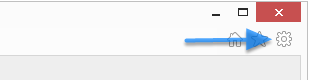
First, click the gear icon located in the upper right hand corner of your browser
Next, select Internet options from the menu
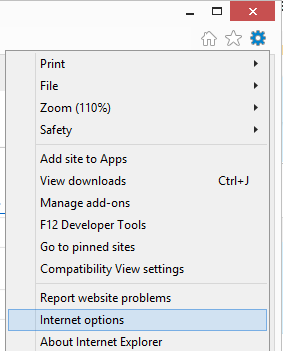
Alternatively, you can press the ALT key on your keyboard to display the Internet Explorer menu. From there, select Tools then Internet Options.
Now, click the Delete button under Browsing History
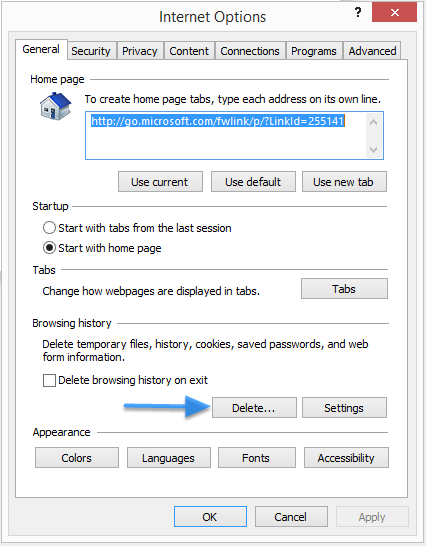
Select which items you want to delete
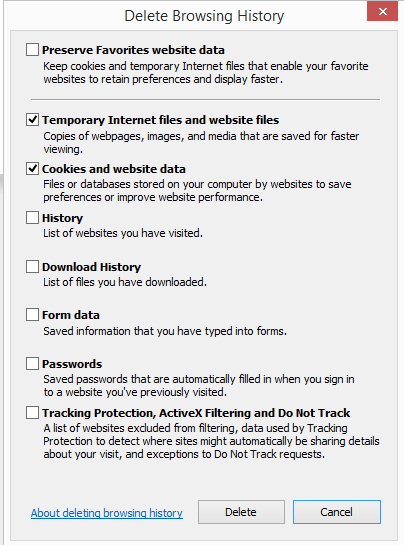
Tick the check box for Temporary Internet files, and Cookies and website data.
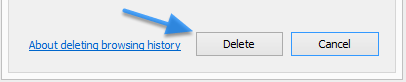
Finally, click the Delete button
Depending on the amount of data that is in the temp folder, this could take a couple minutes. When finished this dialog will close. Close all of the Internet Explorer browsers you have open, and re-launch to try again.