The timesheet admin page will allow a user to submit timesheets to billing for other users.
You will need the timesheet admin permission to access this page. You can find more information on permissions here
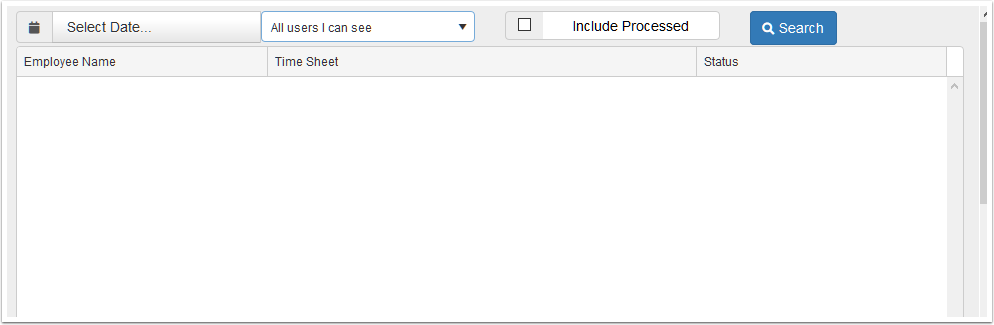
Select Date
Here is where you select the date to search for timesheets for users you have permission to.
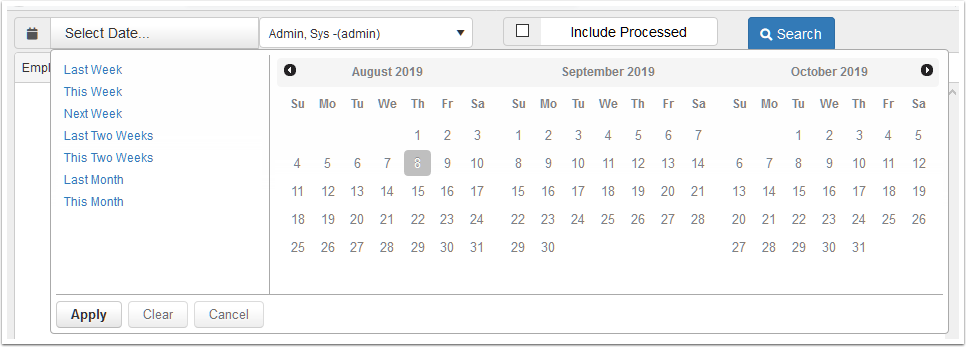
Click on "Select Date..." to show the popup. Use the quick list on the left to set a preset date, or select the date rage using the calendars on the right. Click the start date, then the end date.
When complete, click the Apply button.
Users Dropdown
The user dropdown will populate with all users you were granted timesheet permission to. If a user is not in the list, please contact your system administrator to have them add it for you.
The options in the dropdown are broken in 3 sections. "All users I can see" , "Departments", and "Groups". If you select "All users I can see" and search, you will see all timsheets in the date range for users you have timesheet permission to. Alternatively to that, you can select an individual user to only see their timesheet.
If you select a Department or Group, you will get all users that is in that group that you have timesheet permission to.
Include Processed
When you release a timesheet to billing, the state of the timesheet becomes "processed". If you want to see the timesheets that have been released you can tick the check box to include the processed timesheets for the selected user.
Search
Search will perform the search with the parameters selected.
If you search for all users, you will get a list of users and their timesheets in that date range
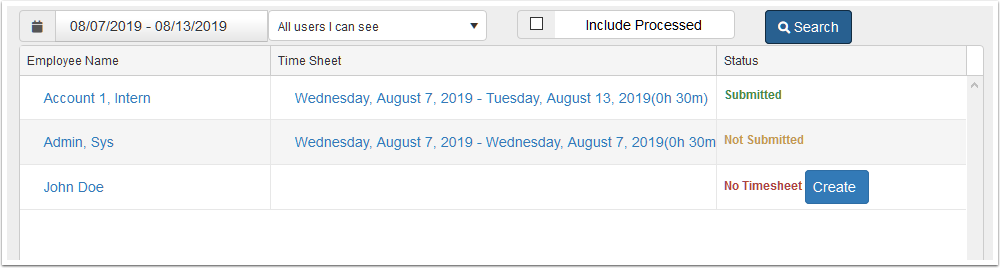
Under the status you will see the state of the timesheet
| Status | Description |
|---|---|
| Submitted | The user submitted their timesheet and it is ready to be reviewed to release to billing |
| Not Submitted | The user created their timesheet but has not submitted it yet. As the timesheet admin, you can open their timesheet to submit. |
| Processed | A processed timesheet will only show if the Include Processed checkbox is ticked. A processed timesheet is one that has been released to billing. The items that were released will show on the proofing screen. |
| No Timesheet | A user has not created any timesheet in the date range you selected. You can click the create button in the status column to create them a timesheet with the start and end date you used to search with. If you selected a whole month as the date range, the new timesheet will be for the month. |
You can click on the users name to open their timesheet page. From there you can manage their timsheets (add, update, delete, submit)
You can click on the timesheet to open the users timesheet.